
- How to Change Timezone in SureTriggers?
- Understand Your Workflow History
- The Difference Between Filter and Condition in SureTriggers
- What are Actions?
- What are the Types of Trigger Data?
- How Failed Steps are Auto-Replayed in SureTriggers?
- What are Triggers?
- Test Action Your Workflow Steps
- Connect SureTriggers With Your WordPress Site & Plugins!
- How to Map Data in SureTriggers?
- Tips for formatting Discord messages
- How to Set up Webhooks in Lob?
- How to Set up Webhooks in Systeme.io?
- How to Set up Webhooks in SuiteDash?
- How to Set up Webhooks in Whereby?
- How to Set up Webhooks in SendPulse?
- How to Set up Webhooks in Brevo?
- How to Set up Webhooks in Clarityflow?
- How to Set up Webhooks in Timely?
- How to Set up Webhooks in Moxie CRM?
- How to Setup Webhook in Memberstack?
- How to Setup Webhooks in Manyreach?
- How to Setup Webhooks in MakeForms?
- How to Setup Webhook in Mailparser?
- How to Setup Webhook in Marquiz?
- How to Setup Webhook in Kommo?
- How to Set up Webhooks in Trafft?
- How to Set up Webhooks in Flexie CRM?
- How to Set up Webhooks in LatePoint?
- How to Set up Webhooks in SavvyCal?
- How to create an integration in Segmetrics and obtain the Integration ID?
- How to Set up Webhooks in Hyros?
- How to Set Up Webhooks in ThriveDesk?
- How to Set up WebHooks in LiveWebinar?
- How to Set Up Webhooks in LearnWorlds?
- How to Set up Webhooks in Drift?
- How to Set up Webhooks in Woobox?
- How to Set up Webhooks in Beehiiv?
- How to Set up Webhooks in Klenty?
- How to Set up Webhook in JVZoo?
- How to Set up Webhook in JivoChat?
- How to Set up Webhook in Invoiless?
- How to Set up Webhook in Invoice Ninja?
- How to Set Up Webhook in NaturalForms?
- How to Set Up Webhook in Teamwork CRM?
- How to Set Up Webhook in SendGrid?
- How to Set Up Webhook in Breakcold?
- How to Set up Webhook in Insightly CRM?
- How to Set up Webhook in InstantPage?
- How to Set up Webhook in Popupsmart?
- How to Set Up Webhook in Snackeet?
- Integration Guide for Slack
- How to Set Up Webhook in Tawk.to?
- How to Set Up Webhook in Square?
- How to Set Up Webhook in Patreon?
- How to Set Up Webhook in Kajabi?
- How to Set Up Webhook in Wise?
- Using Google Calendar Triggers in SureTriggers
- How to Set Up Webhook in Hotmart?
- How to Set Up Webhook in Hippo Video?
- How to Set Up Webhook in Hopin?
- How to Set up Webhook in Hiveage?
- SureTriggers: Encharge Integration Guide
- How to Set Up Webhook in HeySummit?
- How to Set up Webhook in HelpSpace?
- How to Set Up Webhook in HelpCrunch?
- How to Set Up Webhook in Helpwise?
- How to Set Up Webhook in Drip?
- How to Set Up Webhook in Brilliant Directories?
- How to Set Up Webhook in Global Patron?
- How to Set Up Webhook in Frill.co?
- How to Set Up Webhook in forms.app?
- SureTriggers: HubSpot Integration Guide
- How to Set Up Webhook in FastSpring?
- How to Set Up Webhooks in Freshdesk?
- How to Set Up Webhook in Envoice?
- How to Set Up a Webhook in Easypromos?
- How to Set up Webhooks in DoneDone?
- How to Set up Webhook in DocSpring?
- How to Set Up Webhook in Docparser?
- Getting Started with Twitter Integration
- How to Set Up Webhook in Customerly?
- How to Set Up Webhook in Digistore24?
- How to Set Up Webhook in DigiSigner?
- How to Set Up Webhook in Delighted?
- How to Set Up Webhook in Customer.io?
- How to Set Up Webhook in Dashly?
- How to Set Up Webhook in GIST?
- How to Set Up Webhook in Brizy Cloud?
- How to Set Up Webhook in monday.com?
- How to Set Up Webhook in Carrd?
- How To Set Up Webhook in Boost.link?
- How To Set Up Webhook in Zoom?
- How To Set Up Webhook in Jotform?
- SureTriggers: VBOUT Integration Guide
- How To Set Up Webhook in RazorPay?
- How To Set Up Webhook in GetResponse?
- How To Set Up Webhook in Bit Form?
- How To Set Up Webhook in Formium?
- How To Set Up Webhook in Chatwork?
- How To Set Up Webhook in Chatra?
- SureTriggers: JetFormBuilder Integration Guide
- SureTriggers: Todoist Integration Guide
- How To Set Up Webhook in Awork?
- How To Set Up Webhook in Apify?
- How to Set Up Webhook in Albacross?
- How To Set Up Webhook in Shopify?
- How To Set Up Webhook in Clockify?
- How To Set Up Webhook in BulkSMS.com?
- How To Set Up Webhook in Wix Forms?
- How To Set Up Webhook in Salesmate?
- How to Set Up Webhooks in Canny?
- How to Set Up Webhook in Aftership?
- How to Set Up Webhook in BlockSurvey?
- How To Set Up Webhook in Billsby?
- How to Set Up Webhook in Beagle Security?
- How to Set Up Webhook in Crove?
- How to Set Up Webhook in Coupontools?
- How to Set Up Webhook in Cognito Forms?
- How To Set Up Webhook in Content Snare?
- How to Set Up Webhook in ClustDoc?
- How To Set Up Webhook in CloudWaitress?
- SureTriggers: Asana Integration Guide
- SureTriggers: ConvertKit Integration Guide
- How to Set Up Webhook in PaperForm?
- How To Set Up Webhook in FormKeep?
- How To Set Up Webhook in NativeForms?
- How To Set Up Webhook in MightyForms?
- How To Set Up Webhook in Zoho Forms?
- How to Set Up Webhook in Chargebee?
- How to Set Up Webhook in Book Like A Boss?
- How to Add Webhook in BombBomb?
- How to Set Up Webhook in Acadle?
- How To Set Up Webhook in GetLeadForms?
- How To Set Up Webhooks in Formsite?
- How To Set Up Webhook in Gozen Forms?
- How To Set Up Webhook in Flowlu?
- How to Set Up Webhooks in Formster?
- SureTriggers: Trello Integration Guide
- SureTriggers: Stripe Integration Guide
- SureTriggers: ClickUp Integration Guide
- SureTriggers: Tutor LMS Integration Guide
- SureTriggers: Gravity Forms Integration Guide
- SureTriggers: ActiveCampaign Integration Guide
- SureTriggers: MailPoet Integration Guide
- SureTriggers: BuddyBoss Integration Guide
- Complete Guide: Integrate SureTriggers with Zoom
How To Set Up Webhook in Chatwork?
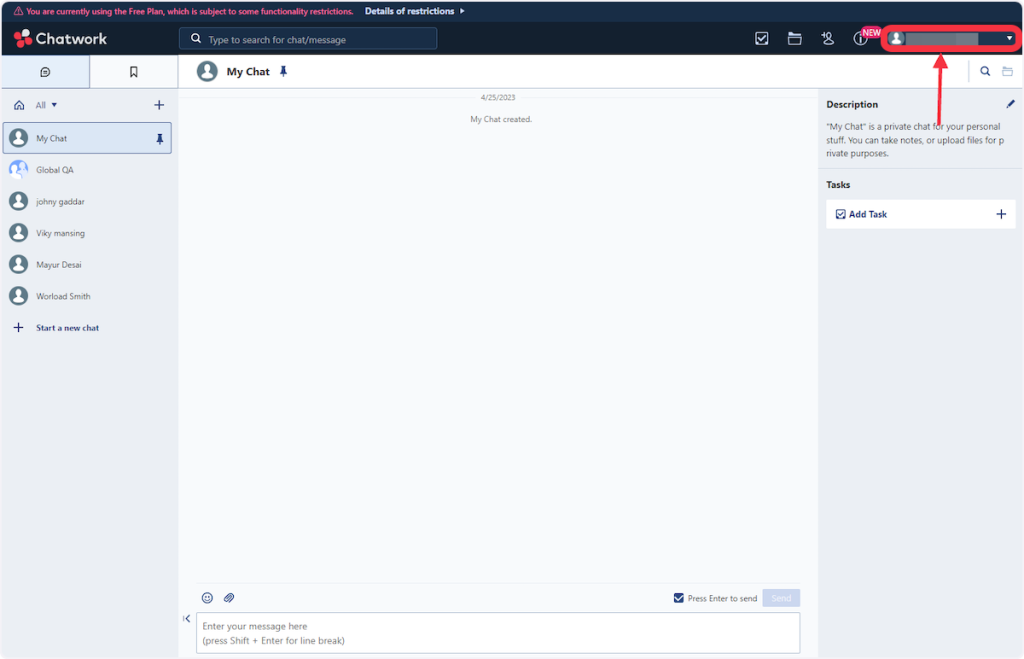
- 2. Click on the Top right side profile icon.
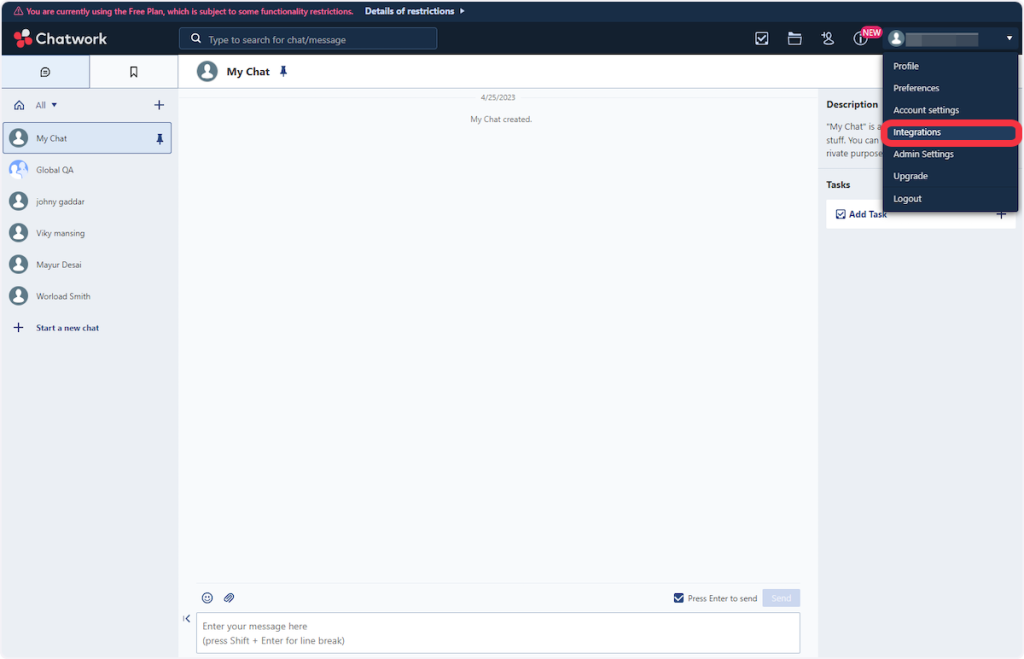
- 3. Click on Integrations.
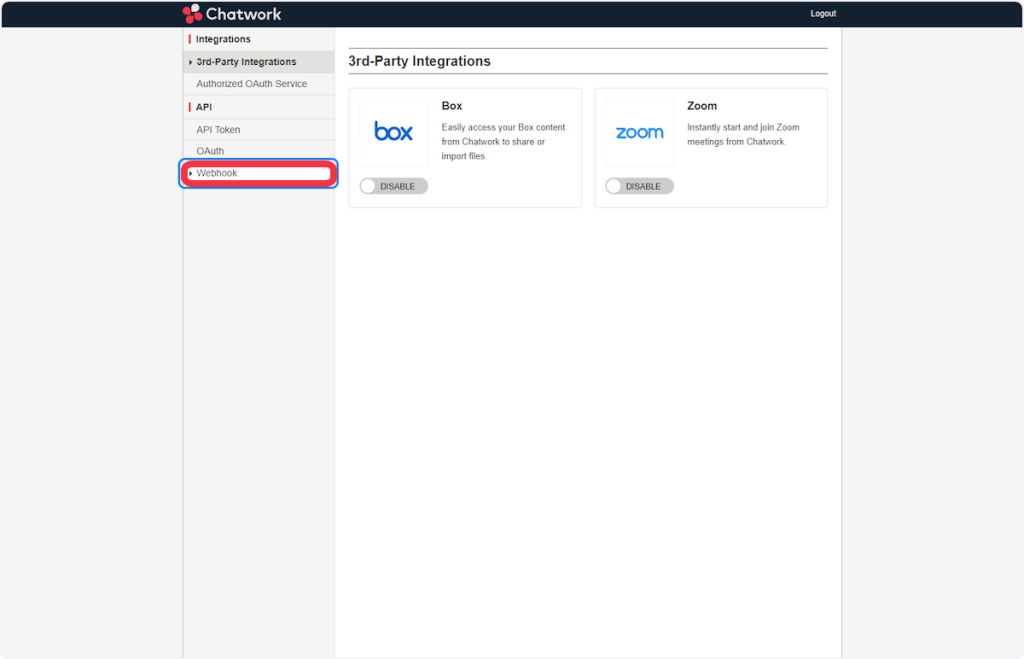
- 4. Click on Webhook.
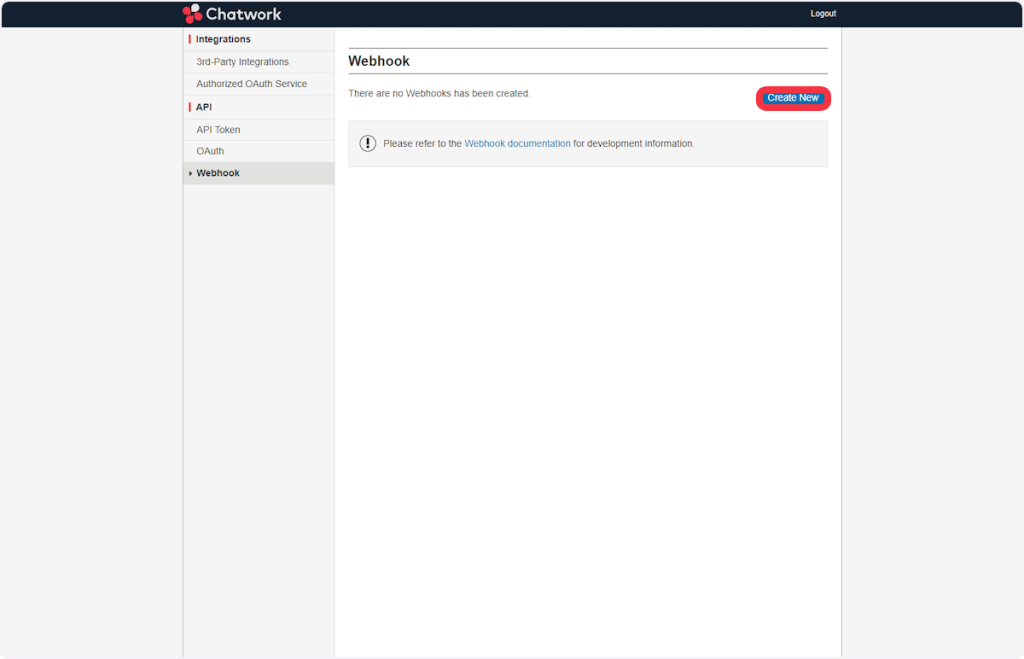
- 5. Click on Create New.
- 6. Add a proper webhook name in the Webhook Name field.
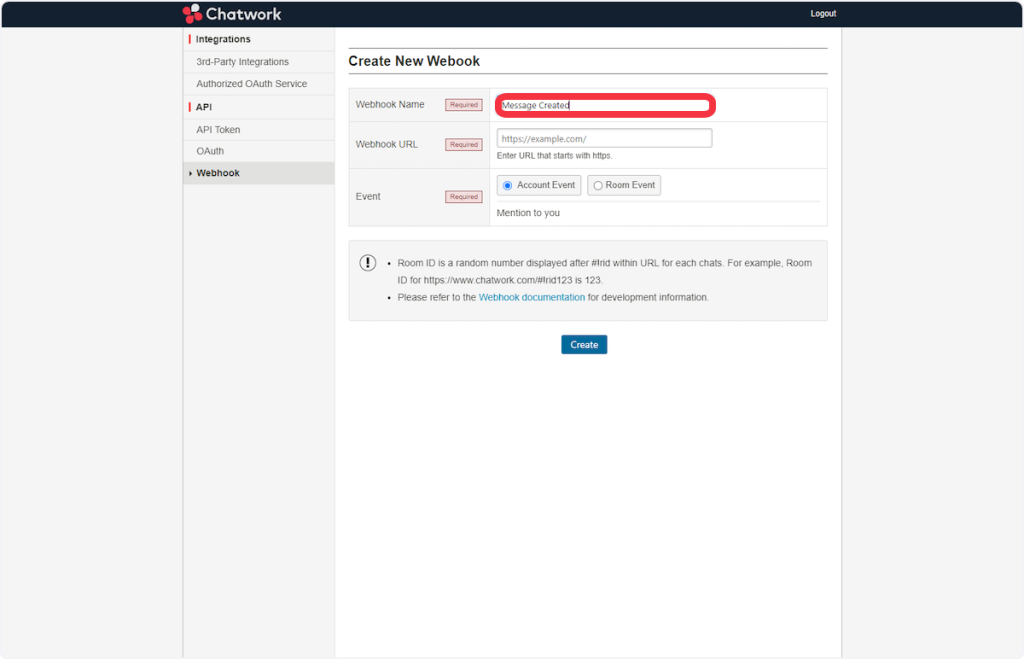
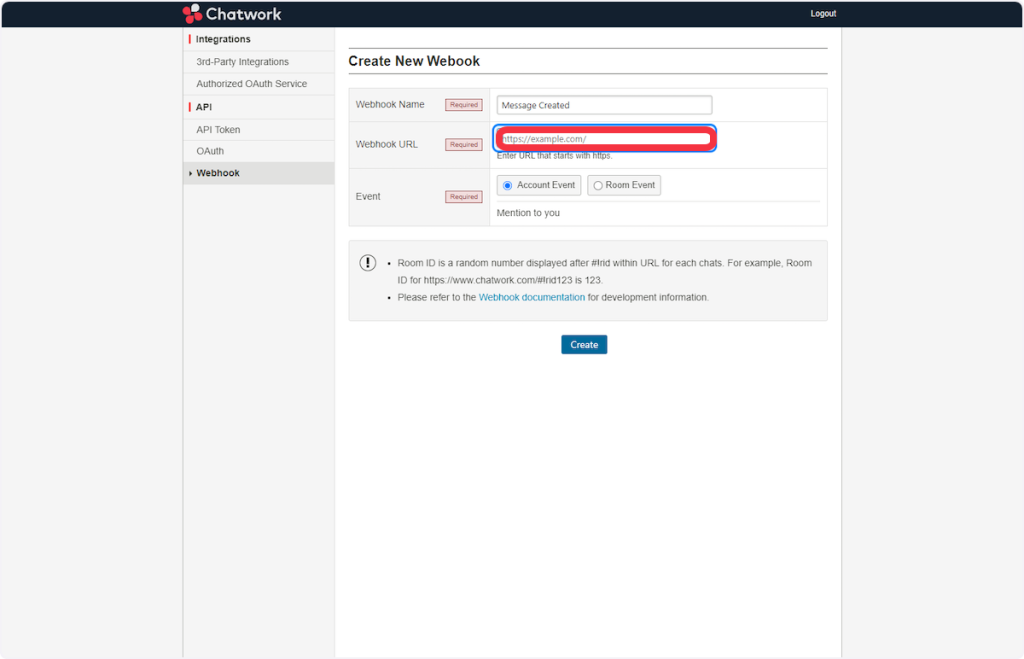
- 7. Copy the webhook URL & paste it under the Webhook URL field.
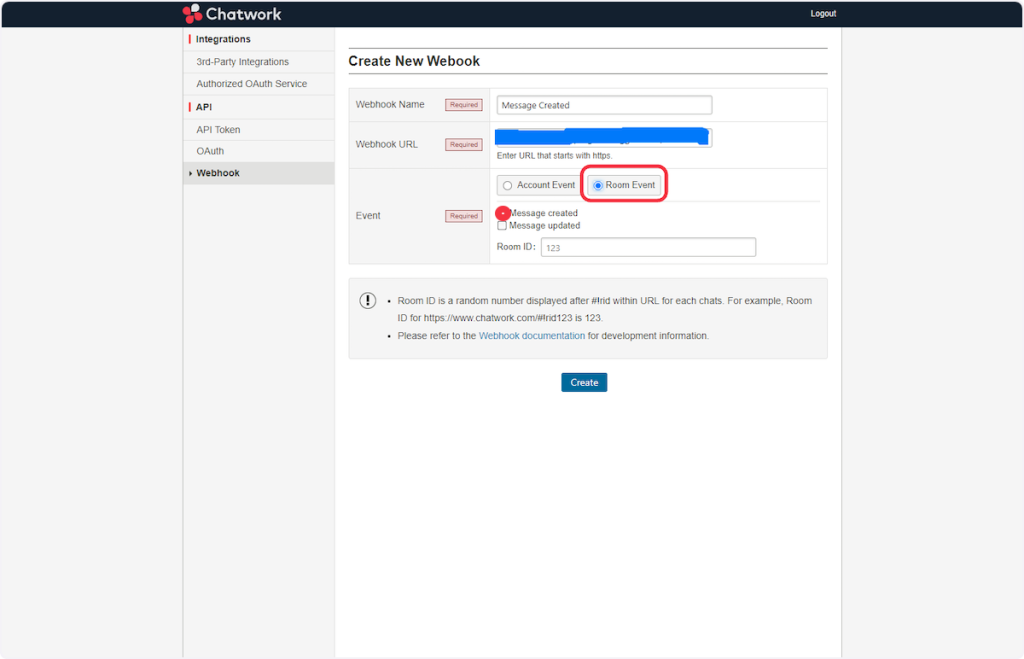
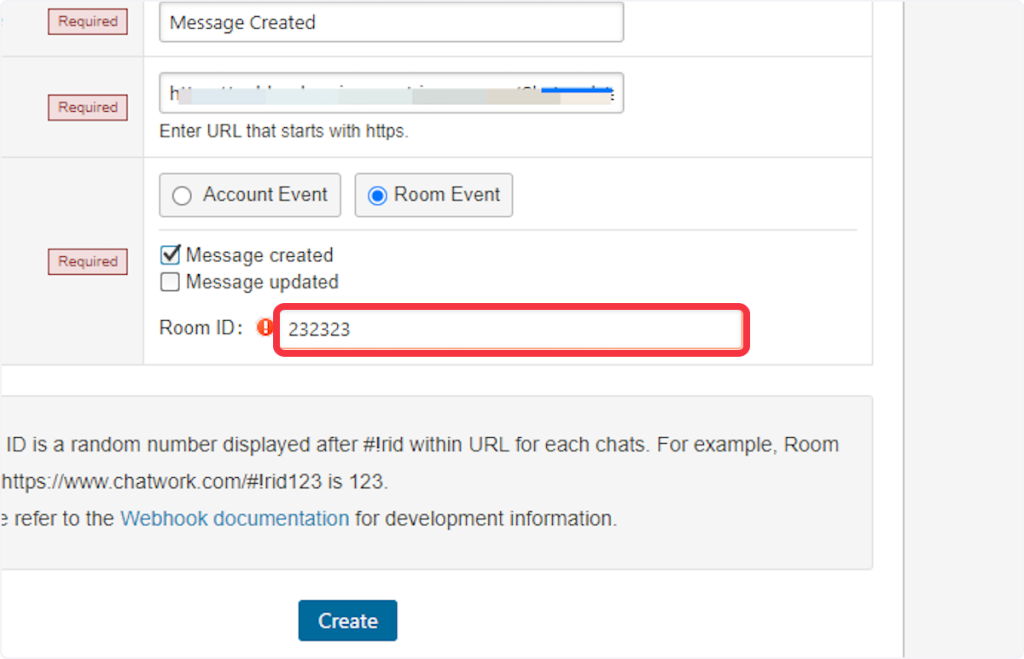
- 8. For Trigger ‘Create Message’ do this – Select Room Event from events and check the Message created box.
- 9. For Trigger ‘Update Message’ do this – Select Room Event from events and check the ‘Message updated’ box.
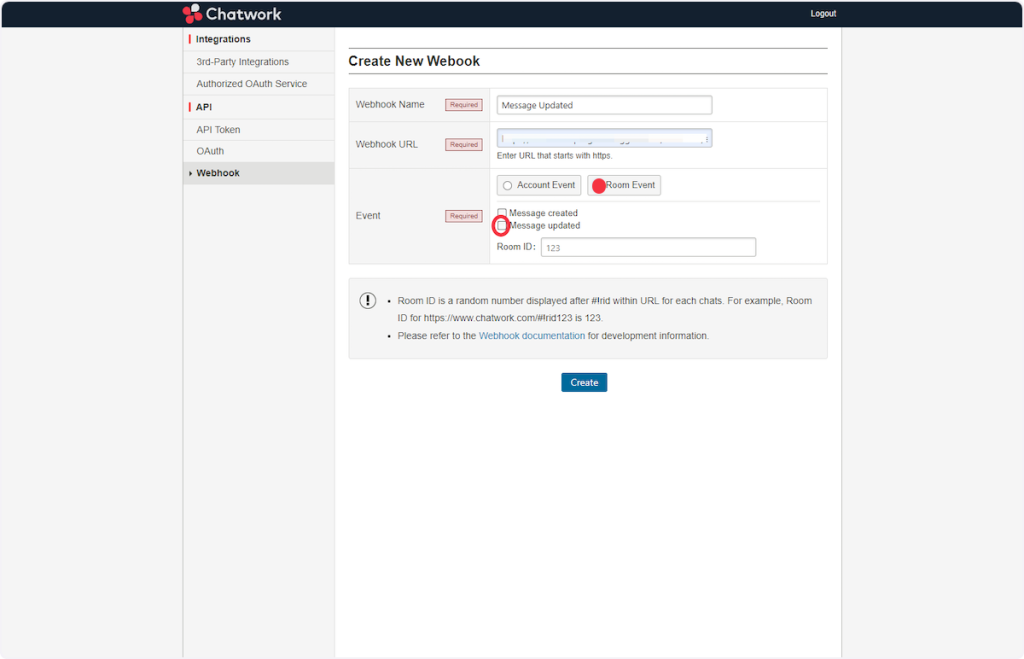
- 10. Add your Room ID. A Room ID is a random number displayed after #!rid within the URL for each chat. For example, the Room ID for https://www.chatwork.com/#!rid456 is 456.
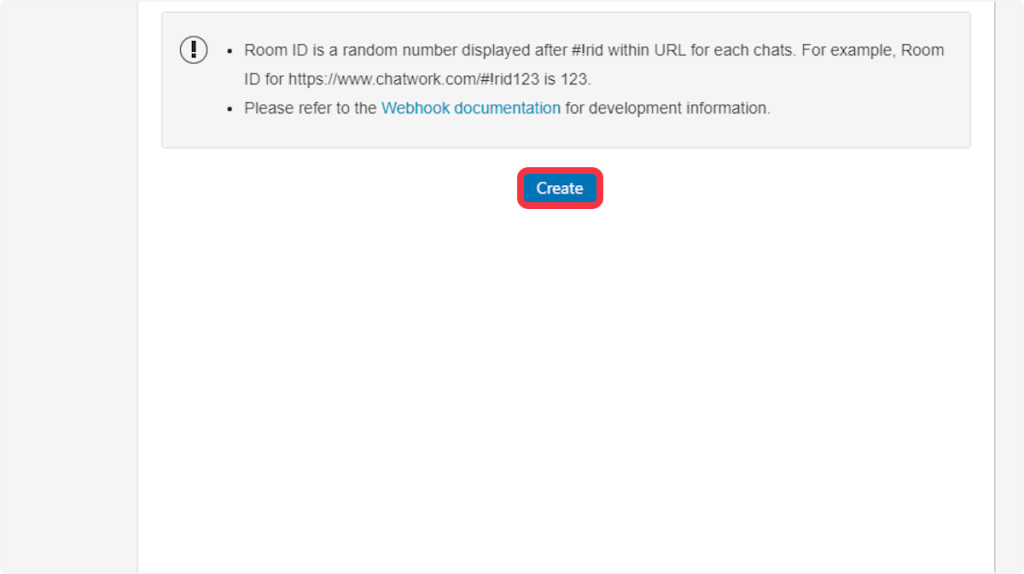
- 11. Click on Create.
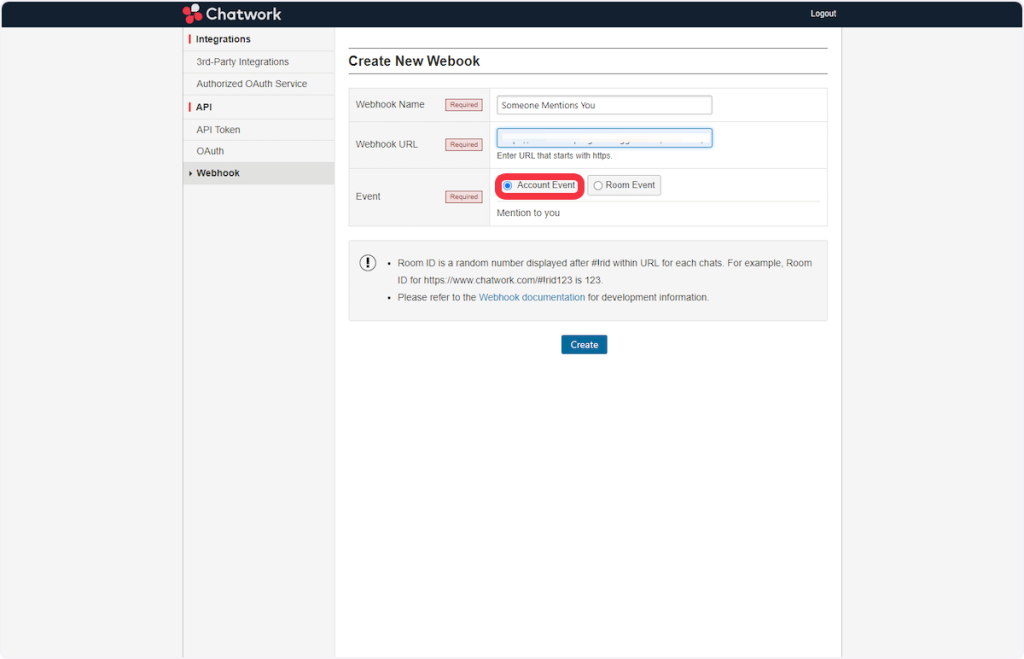
- 12. For Trigger ‘Someone Mention You’ do this – Select ‘Account Event’ from events.
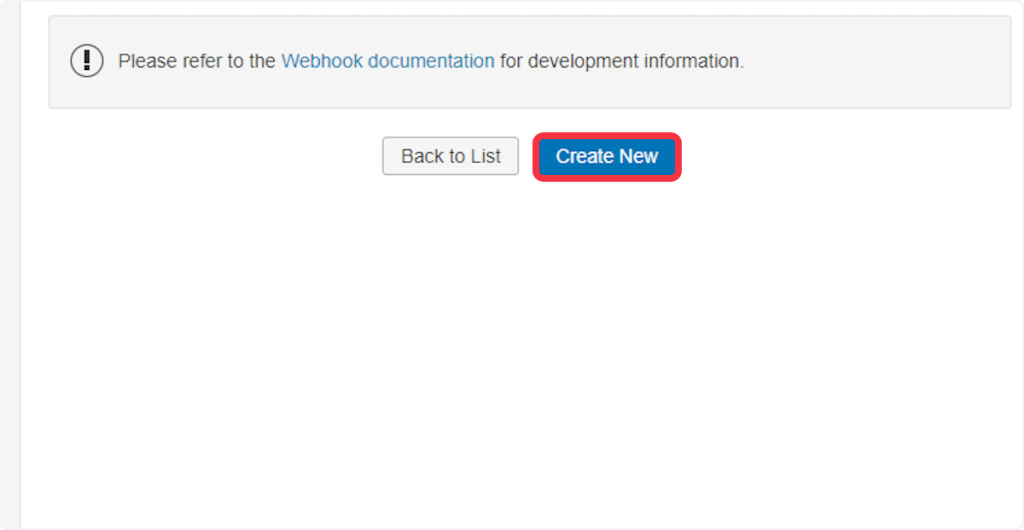
- 13. Click on Create New.
Was this doc helpful?
What went wrong?
We don't respond to the article feedback, we use it to improve our support content.
On this page